Tag: canon

Using your Sony Camera and Canon DSLR as a Webcam on Mac OS X Without a Capture Card

During the COVID-19 Shelter-in-Place we’ve been on video conferences a lot more than usual. To use your Sony Camera or Canon DSLR as a webcam without a capture card here are some things you can do.
I have successfully tried this with a Sony RX100 VA and a Sony A7ii and a Canon SL1 though not every model works.  You will need CamTwist for either camera and additional software for Sony and Canon.

Install CamTwist for both Sony and Canon.

  1. Install CamTwist
    1. http://camtwiststudio.com/download/
  2. Start CamTwist
  3. Open Preferences
  4. Set your video size, I use Custom and 1920×1080
  5. Set your Frame rate, I use 30
  6. You will have to restart CamTwist for the changes to go into effect.

Sony (kind of a hack)

Sony cameras must support Display Live View which can be seen here https://support.d-imaging.sony.co.jp/app/imagingedge/en/devices.

  1. Install Sony Imaging Edge Desktop.
    1. https://imagingedge.sony.net/en-us/ie-desktop.html
  2. Install Sony Remote from the Imaging Edge application.
  3. With your camera set the USB Connection to PC Remote
    1. For the RX100 VA (new sony menu) it was under Setup3
    2. For the a7ii (original sony menu) it was under ……
  4. Turn on your camera
  5. Plug in a micro usb cable to your camera and the computer.
  6. Start Imaging Edge Desktop
  7. Click Start for Remote
  8. Double Click on your Camera with the pop up.
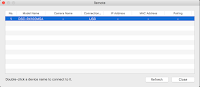
  9. The Remote Application should show up with a live preview.
  10. Start CamTwist
  11. Select Desktop+, then click Select
  12. Under Settings unselect Full Screen and select Confine to Application Window.
  13. From the Select from existing windows select Remote (Remote)
  14. Select Resizeable selection.
  15. Click Select capture area
  16. Position the rectangle over the live preview.
  17. When you start your video conference software, like zoom, go to Prefences->Settings->Video->Camera and select CamTwist.

Note that you must leave the Remote application running and up on the screen but you can obstruct it and put other windows on top of it and still use it as a webcam.

Canon

For a list of supported Canon Cameras go here: https://github.com/v002/v002-Camera-Live/blob/master/CAMERAS.md

  1. Install Camera Live, I’ve linked a stable release as of today.
    1. https://github.com/v002/v002-Camera-Live/releases/download/11/Camera.Live.zip
    2. Their github (for coders)
  2. Turn on your Canon DSLR.
  3. Connect your usb cable to the Canon and the computer.
  4. Start Camera Live
    1. You should see Active for your camera in Camera Live.
  5. Start CamTwist
  6. Select Syphon
  7. Click Select
  8. In the Settings section under Syphon Server select Camera Live.
  9. When you start your video conference software, like zoom, go to Prefences->Settings->Video->Camera and select CamTwist.

qDslrDashboard wireless camera tethering

Wirelessly tether your Sony, Canon or Nikon camera with qDslrDashboard.  It works in OS X, Windows, Linux, Android and iOS.  This application allows you to control your camera remotely without wires.

For Sony RX100 V

  1. Go to Network -> Ctrl w/ Smartphone -> Connection -> Trash (to connect with Password)
  2. From your computer (or whatever device) connect to the Camera’s wifi.
  3. From qDslrDashboard click Sony.
  4. You are now tethered.


https://dslrdashboard.info

RAW Video on the Canon SL1 with Magic Lantern

Shoot Raw Video on the Canon SL1 with Magic Lantern

Make Sure your SL1 firmware is Magic Lantern requests, which as of this post is 1.0.1.

Download the latest Magic Lantern Firmware, which as of this post is
https://builds.magiclantern.fm/jenkins/job/100D.101/15/artifact/platform/100D.101/magiclantern-Nightly.2018Jun06.100D101.zip

Installation is simple.

  • Unzip the file and copy the contents onto a formatted SD Card.
  • After inserting the card in the camera, from the Canon Menu select Firmware Update.
  • After installation, please copy your ROM backup files (ML/LOGS/ROM*.BIN on the card) to a safe place.

Settings
Press the Trash button to enter the Magic Lantern menu.  My settings don’t quite work right yet but here’s what I’m using so far

Modules

  • mlv_lite.mo
  • mlv_play.mo
  • mlv_rec.mo
  • mlv_snd.mo

Movie

  • FPS Override 23.991
  • RAW video (MLV)
  • 1280×544
  • 2.35:1
  •  Reserve card space off

Audio

  • MLV Sound on

Uninstall Method 1

  • Canon menu: Format card, remove Magic Lantern.
    • This procedure does not disable the BOOTDISK flag. With this method, you will still be able to run Magic Lantern from other cards. 
  • Never delete the Magic Lantern files from the card! Format the card instead.

Uninstall Method 2

  • Run Firmware Update from your ML card.
  • Follow the on-screen instructions, including the fine print.
    • This procedure disables the BOOTDISK flag. You will no longer be able to run Magic Lantern, unless you reinstall it.
    • Some settings changed by Magic Lantern might be persistent; this procedure will not reset them. To restore the camera to factory state, you may also want to clear all camera settings and custom functions from Canon menu.

Useful Links:
Magic Lantern for the Canon SL1 https://builds.magiclantern.fm/100D-101.html
Magic Lantern https://www.magiclantern.fm/
Howto Video: https://www.youtube.com/watch?v=b70s-RAT2qw