Tag: apple

Bootable USB Installer for Mac OS

Apple has created a guide here: https://support.apple.com/en-us/HT201372

Their instructions state that you should do download and create the installer only if you are using Sierra (10.12.5), El Capitan or higher (10.11.6).

1.  Download MacOS.
    * El Capitan
        * http://updates-http.cdn-apple.com/2019/cert/061-41424-20191024-218af9ec-cf50-4516-9011-228c78eda3d2/InstallMacOSX.dmg
    * High Sierra
        * https://itunes.apple.com/us/app/macos-high-sierra/id1246284741?ls=1&mt=12
    * Mojave
        * https://itunes.apple.com/us/app/macos-mojave/id1398502828?ls=1&mt=12
    * Catalina
        *  https://itunes.apple.com/us/app/macos-catalina/id1466841314?ls=1&mt=12
Installers for each of these macOS versions download directly to your Applications Folder as an app named Install macOS Catalina, Install macOS Mojave, or Install macOS High Sierra. If the installer opens after downloading, quit it without continuing installation.

Note: El Capitan downloads as a disk image.  Open the disk image which installs an app named Install OS X El Capitan in your Applications Folder.  Create bootable media from this app, not the disk image.

2.  Insert USB Drive, minimum size of 12 GB
3.  Open Terminal.
4.  Type one of the follow into the Terminal, replacing MyVolume with the USB Drive:
    * El Capitan
        * sudo /Applications/Install\ OS\ X\ El\ Capitan.app/Contents/Resources/createinstallmedia –volume /Volumes/MyVolume –applicationpath /Applications/Install\ OS\ X\ El\ Capitan.app
    * High Sierra
        * sudo /Applications/Install\ macOS\ High\ Sierra.app/Contents/Resources/createinstallmedia –volume /Volumes/MyVolume
    * Mojave
        * sudo /Applications/Install\ macOS\ Mojave.app/Contents/Resources/createinstallmedia –volume /Volumes/MyVolume
    * Catalina
        * sudo /Applications/Install\ macOS\ Catalina.app/Contents/Resources/createinstallmedia –volume /Volumes/MyVolume
5.  Follow the prompts to complete the creation of bootable USB Drive.

Using your Bootable MacOS Drive
1. Plug in your USB Drive.
2. Use Startup Manager or Startup Disk preferences to select the bootable installer as the startup disk, then start up from it. Your Mac will start up to macOS Recovery.

Note: The Internet is required to get information specific to your Mac model, such as firmware updates, not for the installer.
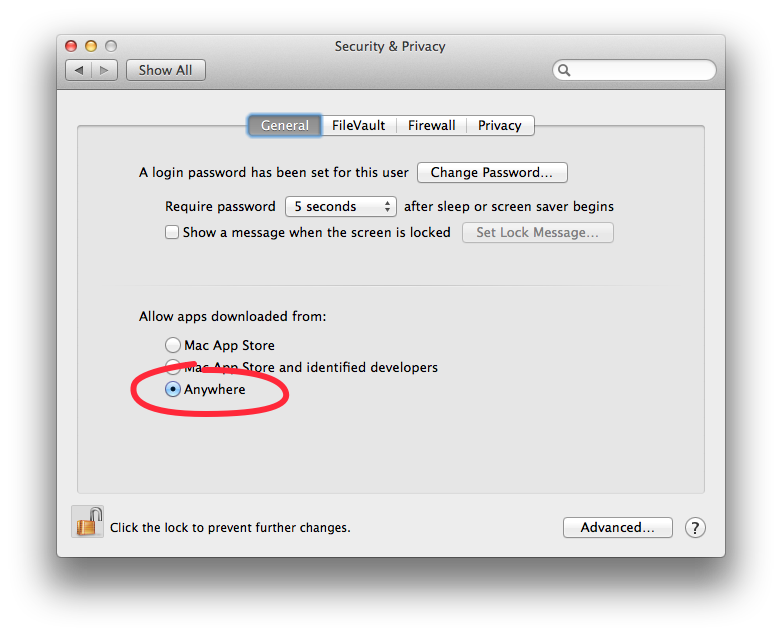
iOS 13.2 not showing up in iTunes on Mac

After updating my iphone to iOS 13.2 iTunes was not showing my device.  Normally there’s a popup that states a software update must be downloaded, but it was not showing up on my old High Sierra iTunes 12.8.2.3.  To fix that follow the following directions:

In Finder
Go -> Go to Folder
Then type in
/System/Library/PrivateFrameworks/MobileDevice.framework/Versions/Current/Resources

Double click MobileDeviceUpdater


Source:
https://discussions.apple.com/thread/250624460

Download Entire Mojave Installer

When downloading the Mojave installer I get a 22.8MB small installer file instead of the 6GB full version.

To build your own full “legit” macOS Mojave installer do the following.

Start the mini installer that you get from the App Store and follow the prompts until you get to the point that it starts counting down to reboot your machine. Quickly CANCEL the reboot.

Once you cancel, you will have the full 6gb installer files since the mini installer downloads all required files. It will create a folder titled “macOS install Data” on the root of your primary hard drive.

Once you have all of the files, you now have to make the installer package by running the following 3 commands in Terminal:

At the command line, first type the following for super user privileges:

sudo -s

mkdir /Applications/Install\ macOS\ Mojave.app/Contents/SharedSupport

cd /macOS\ Install\ Data

find . -mount | cpio -pvdm /Applications/Install\ macOS\ Mojave.app/Contents/SharedSupport

Right click the installer that you originally downloaded from the App Store in your Applications directory and you’ll see that its now 6GB instead of the 23mb or 25mb that you get from the App store.

Source: http://osxdaily.com/2018/09/29/download-full-macos-mojave-installer/

OSXFuse File Damaged

The following is copied word for word from apmouse‘s answer on stackexchange.com.

Under special circumstances, Mac OS X adds the extended attribute ‘com.apple.quarantine’ to a file which was e.g. downloaded from the internet. This can also happen to files within the BoxCryptor Folder. If an encrypted file has this extended attribute set, you receive the “is damaged” error message when trying to open the plaintext file in the BoxCryptor Volume.

x) Open Terminal (Applications -> Utilities)

y) Run the following command (substitute the path):

$ xattr -r -d com.apple.quarantine /path/to/encfs/mount/point

Source: http://apple.stackexchange.com/questions/129966/files-wrongly-considered-as-damaged-in-encfs-volume

Sometimes I will just apply this to a whole directory of my photos:
xattr -r -d com.apple.quarantine *

Replace Battery on Mid-2011 Macbook Air

http://www.ifixit.com/Guide/MacBook+Air+13-Inch+Mid+2011+Battery+Replacement/6359

One of the reviews from the amazon link below state that you may need to delete the system preference file /System/Library/Extensions/IOPlatformPluginFamily.kext/Contents/PlugIns/ACPI_SMC_PlatformPlugin.kext/Contents/Resources/MacBookAir4_2.plist to get the CPU throttling working normally.

My Mac
1.7 or 1.8 GHz (Mid 2011) 13″ MacBook Airs

My Battery Specs
Power Rating: 6700 mAh
Model #: A1405

Sellers:
http://www.aliexpress.com/item/Genuine-Original-A1405-BATTERY-for-Apple-MacBook-Air-13-A1369-A1466-Mid-2011-Mid-2012-Battery/1168791431.html

http://stores.ebay.com/toppowerusa/

I ended up buying from the seller on ebay.  The Battery had 8 cycles on it and was in close to new condition.  It also shipped with the pentalobe screwdrivers (2 of them) required to unscrew the macbook air and remove the battery.
current max: 6778 mAh
original max: 6700 mAh
health:101%.
cycles: 8
manufacture date: 7/24/12

Installation was very quick and easy, just unscrew and replace.

Apple WIFI dropping constantly

Switched from Ubuntu to OS X a year ago, specifically a Macbook Air.  “It just works” is what Apple likes to claim.  While I know that’s marketing, you shouldn’t say it if you can’t back it up.

I feel like I’m using Linux again with all sorts of wifi issues, buts due to driver issues.  A company that controls the platform has no excuses there.  Seriously, I’ll be working and all of a sudden my WIFI drops.  God….

And their trackpad seemed like a nice touch at first, gestures were cool.  However after a year it has given me carpel tunnel syndrome where as a normal touch pad never has.  I like gestures but if it’s a choice between gestures and my health I’ll gladly give up stupid gestures.

Anyway… wifi… some say it’s bluetooh, others speculate other things….. god damnit.  For my tracking purposes…

Updated to 10.7.3. Wifi drops constantly.
https://discussions.apple.com/thread/3704573?start=0&tstart=0

Wifi constantly dropping in Lion
https://discussions.apple.com/thread/3190651?start=15&tstart=0

Bluetooth disrupts Wi-Fi  – not sure about this one

Wifi dropping discussion
http://www.ilounge.com/index.php/backstage/comments/os-x-lion-serious-wi-fi-disconnect-problems-for-macs-and-solutions/

Apple’s solution from the above link – did not work
http://support.apple.com/kb/HT4628

A new hope…
http://osxdaily.com/2012/08/02/fix-os-x-mountain-lion-wireless-connection-problems/
Change MTU to 1453
MTU is maximum transmission unit which is the largest packet size allowed over the network.  This setting can be problematic for some networks.  They recommend using 1453 which “is just small enough to maintain a consistent connection with most networks but just large enough to not cause any slowdowns, it’s the magic number and an old cisco networking secret.”