As of OS 10.12.6+ AMD graphics cards work out of the box with Hackintosh. This means sleep and wake work reliably though there is a bit of a delay compared to my actual Mac.
The following is from Hackintosher.
https://hackintosher.com/guides/hackintosh-amd-graphics-cards-sierra-10-12-6/
Step 1. Mount EFI Partition
- Download Clover Configurator
- Open Clover Configurator
- Select Mount EFI under TOOLS
- Click Mount Partition for Install macOS….
- Click Open Partition (This is your EFI Folder)
Step 2. Verify EmuVariableUefi-64.efi
Some motherboards such as those by Gigabyte and ASROCK will require EmuVariableUefi-64.efi for NVRAM detection, without it you wont get hardware acceleration on your AMD card.
- Verify file EmuVariableUefi-64.efi exits in location /Volumes/EFI/EFI/CLOVER/drivers64UEFI of your mounted partition.
If it’s not there add EmuVariableUefi-64.efi:
- Open Clover Configurator
- Mount your EFI Partition
- Open config.plist using Clover Configurator
- Click Install Drivers on left column of Clover Configurator
- Click EmuVariableUefi in bottom left box.
- Verify EmuVariableUefi-64.efi exists in /Volumes/EFI/EFI/Clover/Drivers64UEFI/
Step 3. Enabling AMD Cards
- Download latest release version of Lilu.kext
- Download latest release version of WhateverGreen.kext
- Unzip both RELEASE.zip downloads
- Copy Lilu.kext and WhateverGreen.kext from their respective RELEASE folders
- Place them in EFI/CLOVER/kexts/Other of your mounted EFI partition
Step 4. BIOS Settings
- Restart your computer
- Enter BIOS
- Verify that integrated graphics is disabled (if you can disable it)
- Verify that GPU is set to PEG/PCIe priority (This is super important as leaving it on Auto will cause performance issues)
- Save & Exit
- Boot your hackintosh
I need to make sure the Integrated Graphics is selected on boot:
https://www.tonymacx86.com/threads/radeon-560-must-use-igfx-to-boot-up.243319/
After that’s done….
This also means I finally get 4k @ 60Hz video as my Intel HD530 was not supported.
Make sure your using a display port connection and your ASUS MG24UMonitor is using Display Port 1.2.
Open Display Preferences
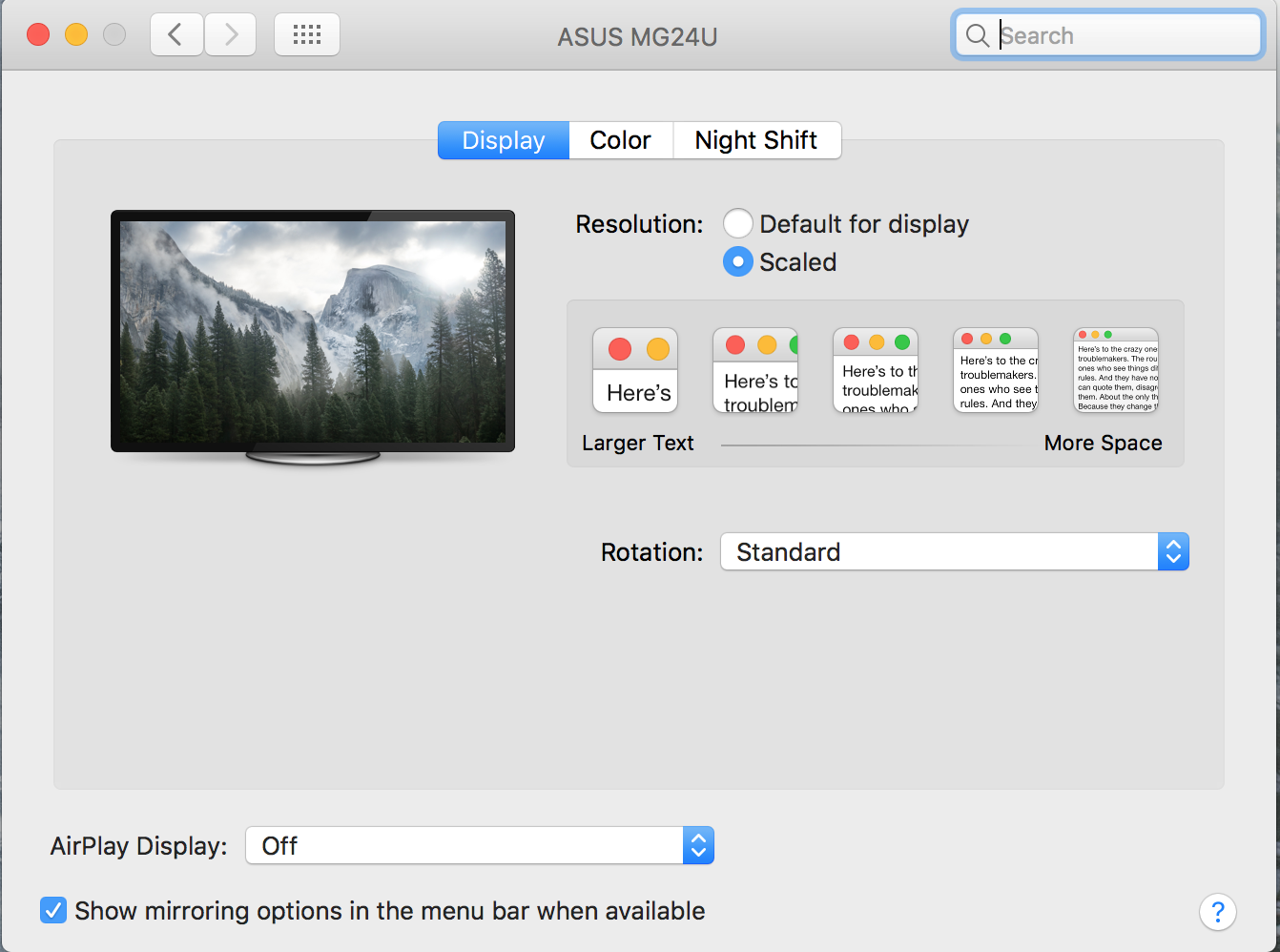
With my Windows Style keyboard press alt and click Scaled to get resolution options:
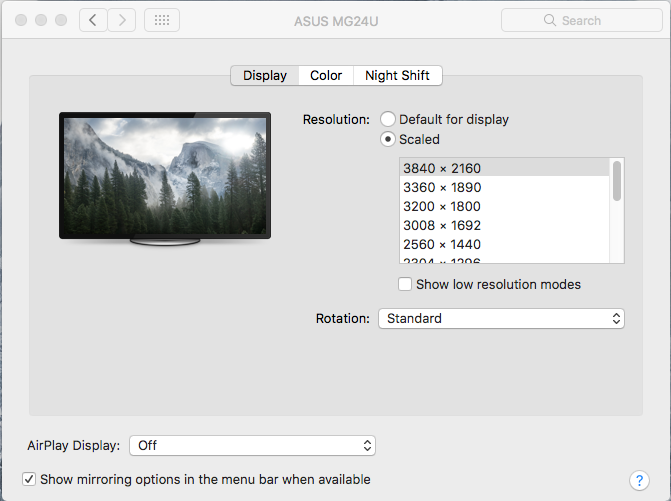
Select 3840 x 2160 and it’s all set.
 WincenTech