Month: August 2019

Download Entire Mojave Installer

When downloading the Mojave installer I get a 22.8MB small installer file instead of the 6GB full version.

To build your own full “legit” macOS Mojave installer do the following.

Start the mini installer that you get from the App Store and follow the prompts until you get to the point that it starts counting down to reboot your machine. Quickly CANCEL the reboot.

Once you cancel, you will have the full 6gb installer files since the mini installer downloads all required files. It will create a folder titled “macOS install Data” on the root of your primary hard drive.

Once you have all of the files, you now have to make the installer package by running the following 3 commands in Terminal:

At the command line, first type the following for super user privileges:

sudo -s

mkdir /Applications/Install\ macOS\ Mojave.app/Contents/SharedSupport

cd /macOS\ Install\ Data

find . -mount | cpio -pvdm /Applications/Install\ macOS\ Mojave.app/Contents/SharedSupport

Right click the installer that you originally downloaded from the App Store in your Applications directory and you’ll see that its now 6GB instead of the 23mb or 25mb that you get from the App store.

Source: http://osxdaily.com/2018/09/29/download-full-macos-mojave-installer/
4k Hackintosh with Raedeo 560

As of OS 10.12.6+ AMD graphics cards work out of the box with Hackintosh.  This means sleep and wake work reliably though there is a bit of a delay compared to my actual Mac.

The following is from Hackintosher.
https://hackintosher.com/guides/hackintosh-amd-graphics-cards-sierra-10-12-6/

Step 1. Mount EFI Partition
  1. Download Clover Configurator
  2. Open Clover Configurator
  3. Select Mount EFI under TOOLS
  4. Click Mount Partition for Install macOS….
  5. Click Open Partition (This is your EFI Folder)
Step 2. Verify EmuVariableUefi-64.efi

Some motherboards such as those by Gigabyte and ASROCK will require EmuVariableUefi-64.efi for NVRAM detection, without it you wont get hardware acceleration on your AMD card.

  • Verify file EmuVariableUefi-64.efi exits in location /Volumes/EFI/EFI/CLOVER/drivers64UEFI of your mounted partition.

If it’s not there add EmuVariableUefi-64.efi:

  1. Open Clover Configurator
  2. Mount your EFI Partition
  3. Open config.plist using Clover Configurator
  4. Click Install Drivers on left column of Clover Configurator
  5. Click EmuVariableUefi in bottom left box.
  6. Verify EmuVariableUefi-64.efi exists in /Volumes/EFI/EFI/Clover/Drivers64UEFI/
Step 3. Enabling AMD Cards
  1. Download latest release version of Lilu.kext
  2. Download latest release version of WhateverGreen.kext
  3. Unzip both RELEASE.zip downloads
  4. Copy Lilu.kext and WhateverGreen.kext from their respective RELEASE folders
  5. Place them in EFI/CLOVER/kexts/Other of your mounted EFI partition
Step 4. BIOS Settings
  1. Restart your computer
  2. Enter BIOS
  3. Verify that integrated graphics is disabled (if you can disable it)
  4. Verify that GPU is set to PEG/PCIe priority (This is super important as leaving it on Auto will cause performance issues)
  5. Save & Exit
  6. Boot your hackintosh

I need to make sure the Integrated Graphics is selected on boot:
https://www.tonymacx86.com/threads/radeon-560-must-use-igfx-to-boot-up.243319/

After that’s done….
This also means I finally get 4k @ 60Hz video as my Intel HD530 was not supported.
Make sure your using a display port connection and your ASUS MG24UMonitor is using Display Port 1.2.

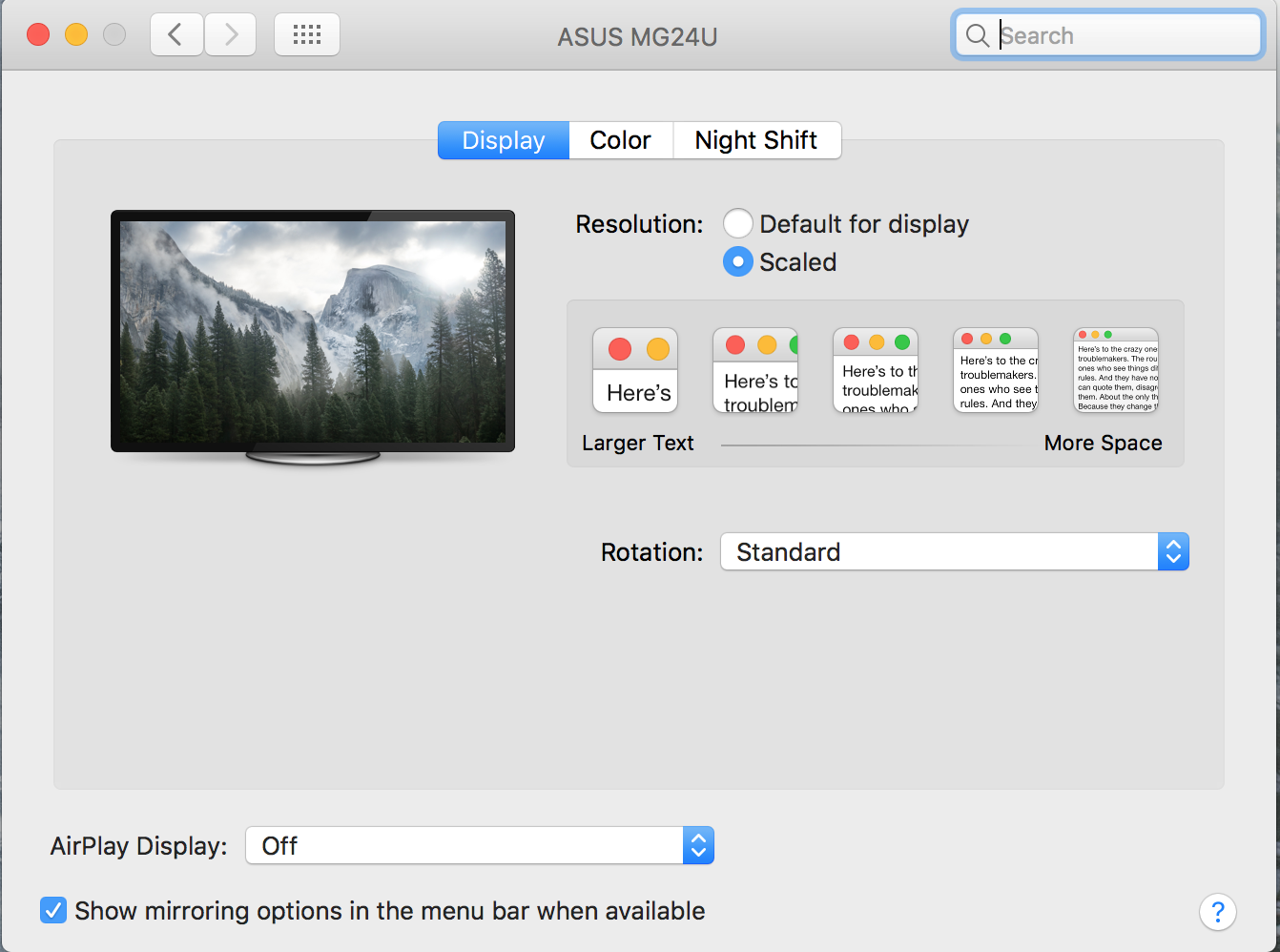
Open Display Preferences

With my Windows Style keyboard press alt and click Scaled to get resolution options:

Select 3840 x 2160 and it’s all set.